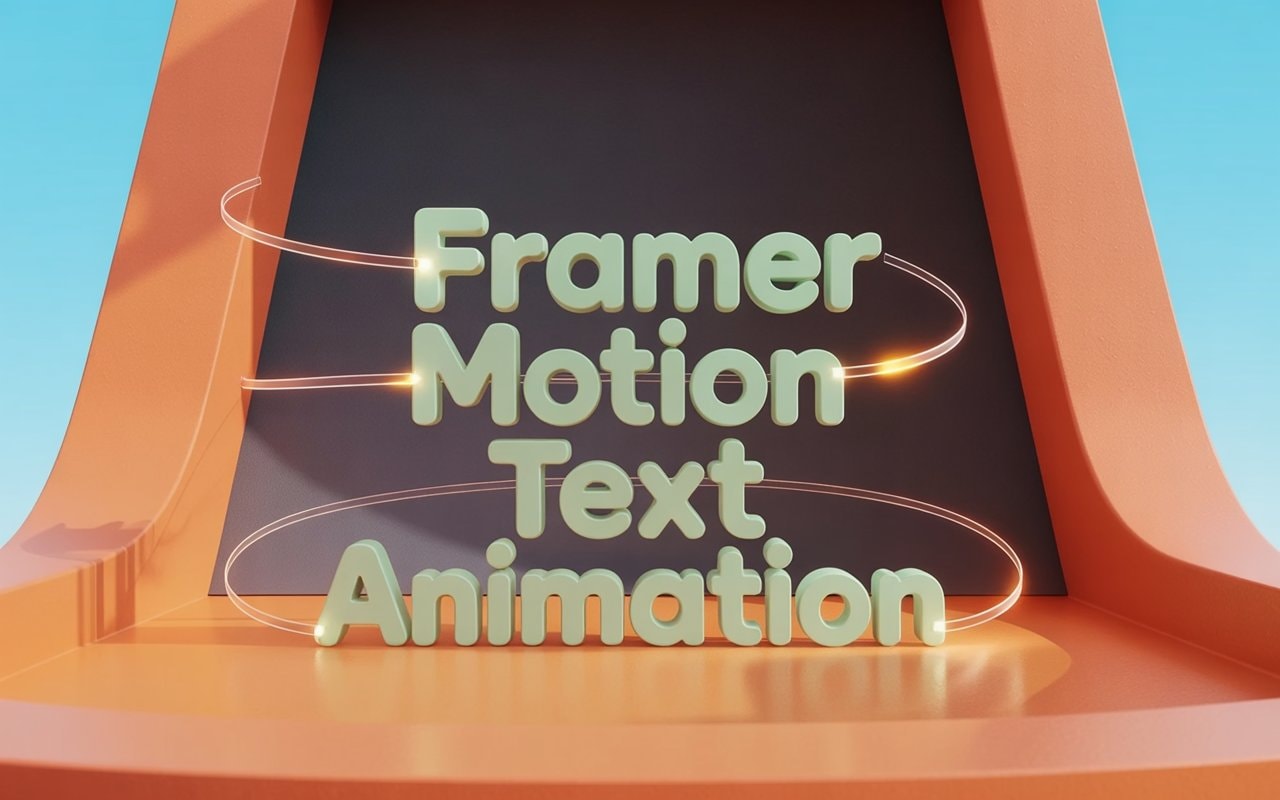
Framer Motion Text Animation: 7 Patterns Top Agencies Actually Use
If you're a developer building a modern SaaS or an indie hacker trying to stand out in a crowded market, static interfaces no longer cut it. The difference between a tool that users abandon after the free trial and one they obsess over often boils down to the "feel" of the product. That's where Framer Motion text animation changes the game.
By leveraging Framer Motion, the standard library for React animations, you can build everything from split-letter reveals to 3D spinning typographic masterpieces. This definitive guide will show you exactly how to implement 7 advanced text animations in your frontend projects, keeping your framerates at a flawless 60fps.
Key Takeaways
- Motion Foundations: Framer Motion uses declarative React syntax and spring physics to create fluid, natural animations.
- Advanced Patterns: Learn to build staggered fades, infinite loops, blur-ins, 3D spinning text, and dynamic scaling.
- Performance: Enforce
will-change: transform, respect reduced motion, and useLazyMotionfor small bundle sizes.- Next.js Integration: Fix hydration issues and master
AnimatePresencefor unmounting elements.
Table of Contents
- Why Framer Motion is the Standard for Typography Motion
- 7 Advanced Framer Motion Text Animation Patterns for React
- 4 Best Practices for Text Animations
- The Hard Truth: Building from Scratch is Expensive
- Deep Dive: Managing Framer Motion in Nextjs App Router
- Mastering Exit Animations with AnimatePresence
- Advanced Troubleshooting Guide
- Frequently Asked Questions
Why Framer Motion is the Standard for Typography Motion
Before diving into the code, it's crucial to understand why Framer Motion has dominated the React frontend ecosystem over CSS transitions or complex libraries like GSAP.
1. Declarative React Syntax
Framer Motion abstracts the complexity of imperative animation code. Instead of manually calculating interpolations or using requestAnimationFrame, you simply define initial, animate, and transition props on an <motion.dev> or <motion.h1> tag.
2. Variants and Deep Staggering
When animating text, the most common pattern involves splitting a string into individual letters or words and animating them sequentially. Framer Motion's variants system allows you to define states like "hidden" and "visible" at the parent level, and automatically propagate them to children using staggerChildren.
3. Spring Physics
Traditional CSS animations rely on bezier curves (easings) that correspond to set durations. Framer Motion introduces spring physics (stiffness, damping, mass), which mimics real-world momentum. When you interrupt a spring animation, it naturally flows into the next state without jarring jumps.
7 Advanced Framer Motion Text Animation Patterns for React
Let's break down the exact patterns top-tier agencies use to win Awwwards. We will progressively move from basic to masterclass-level techniques.
Pattern 1: The Gradual Letter Stagger
The staggered fade-up is the bread and butter of modern landing page hero sections. It involves wrapping each character in its own motion component.
"use client";import React, { useRef } from "react";import { motion, useInView } from "motion/react";export default function StaggeredText({ text = "Gradual Letter Stagger" }: { text?: string }) {const ref = useRef(null);const isInView = useInView(ref, { once: true, margin: "-10%" });const letters = Array.from(text);const container: any = {hidden: { opacity: 0 },visible: (i = 1) => ({opacity: 1,transition: { staggerChildren: 0.05, delayChildren: 0.04 * i },}),};const child: any = {visible: {opacity: 1,y: 0,transition: { type: "spring", damping: 12, stiffness: 200 },},hidden: {opacity: 0,y: 20,transition: { type: "spring", damping: 12, stiffness: 200 },},};return (<div className="w-full h-full flex items-center justify-center bg-[#0a090a] rounded-xl font-bold p-8 overflow-hidden border border-neutral-800"><motion.h1ref={ref}variants={container}initial="hidden"animate={isInView ? "visible" : "hidden"}className="text-4xl sm:text-5xl flex overflow-hidden text-neutral-100 flex-wrap justify-center relative z-10">{letters.map((letter, index) => (<motion.span variants={child} key={index}>{letter === " " ? "\u00A0" : letter}</motion.span>))}</motion.h1></div>);}
Pro Tip: Notice how we handle spaces with the non-breaking space character \u00A0. If you map over an empty string space, the browser will collapse it, ruining your layout!
Gradual Letter Stagger
Pattern 2: The Continuous Looping Text Cycle
For dynamic value propositions, swapping out words infinitely creates a hypnotic, engaging effect. We do this by mapping through an array and relying on absolute positioning, moving the text up or down the Y-axis.
Here is a live example of Infinite Text Cycle:
Your go to for
Notes
SEO
Coding
Blog Posts
Productivity
AI
Marketing
Analytics
Notes
SEO
Coding
Blog Posts
Productivity
AI
Marketing
Analytics
Notes
SEO
Coding
Blog Posts
Productivity
AI
Marketing
Analytics
Notes
SEO
Coding
Blog Posts
Productivity
AI
Marketing
Analytics
The trick to this infinite loop is managing currIndex in React state combined with usePageInView to ensure it only runs when visible, thus saving CPU cycles.
Pattern 3: Blur-In Reveal on Scroll
Blur-ins look incredibly cinematic and mimic camera focus pulls. They became highly popularized by Apple's marketing pages.
"use client";import React from "react";import { motion } from "motion/react";export default function BlurInText({ text = "Cinematic Blur Reveal" }: { text?: string }) {const words = text.split(" ");return (<div className="w-full h-full flex flex-col items-center justify-center bg-[#0a090a] rounded-xl p-8 overflow-hidden border border-neutral-800"><div className="flex flex-wrap justify-center gap-3 relative z-10">{words.map((word, i) => (<motion.h1key={i}initial={{ filter: "blur(12px)", opacity: 0, y: 10 }}whileInView={{ filter: "blur(0px)", opacity: 1, y: 0 }}viewport={{ once: true, margin: "-50px" }}transition={{ duration: 0.6, ease: "easeOut", delay: i * 0.1 }}className="text-4xl sm:text-5xl font-extrabold text-neutral-100 tracking-tight">{word}</motion.h1>))}</div></div>);}
By utilizing whileInView, Framer Motion handles the IntersectionObserver under the hood. The margin: "-100px" ensures the animation only triggers when the user has scrolled 100 pixels past the element, ensuring it doesn't animate off-screen.
Cinematic
Blur
Reveal
Pattern 4: The 3D Spinning Text Box
Who said text has to remain flat? By leveraging rotateX and translateZ within Framer Motion, alongside CSS perspective, we can create beautiful 3D rotating text structures similar to our Spinning Text component.
COMPONENTS THAT
In this approach, the container holds a standard perspective: 1000px, and the Framer Motion driver animates the rotateX value of the parent, while the children maintain absolute positioning pushed out along the Z-axis.
Pattern 5: Dynamic Text Scaling
Highlighting your ideal customer profiles (ICPs) right in the hero section is great for conversions. To make it stand out, we scale the text out of nowhere, replacing the noun dynamically (try our Text Scale component).
PERFECT FOR
AGENCIES
Using the useAnimate hook or simply triggering keyframes on state change handles this pop-up scale easily. Add Layout animations (layoutId or layout) to ensure surrounding text moves smoothly instead of snapping.
Pattern 6: Rotating Character Dial
This technique involves separating characters of a word and pushing them in a circular formation. You calculate the degrees required per letter (360 / word.length) and apply transform: rotate() translate(). When animated, you rotate the main wrapper by 360 degrees using a linear, infinite loop in Framer Motion.
"use client";import React from "react";import { motion } from "motion/react";export default function RotatingDialText({ text = "ROTATE • SPIN • DIAL • " }: { text?: string }) {const characters = text.split("");const radius = 40;return (<div className="w-full h-full flex items-center justify-center bg-[#0a090a] rounded-xl overflow-hidden min-h-[300px] border border-neutral-800"><motion.divanimate={{ rotate: 360 }}transition={{ duration: 8, repeat: Infinity, ease: "linear" }}className="relative flex items-center justify-center z-10"style={{ width: radius * 2, height: radius * 2 }}>{characters.map((char, i) => {const rotation = (360 / characters.length) * i;return (<spankey={i}className="absolute text-xl font-mono text-neutral-300 font-bold"style={{transform: `rotate(${rotation}deg) translateY(-${radius}px)`,transformOrigin: `0 ${radius}px`,left: "50%",top: "0",marginLeft: "-0.5ch"}}>{char}</span>);})}</motion.div></div>);}
Pattern 7: Magnetic Hover Text
A micro-interaction favorite! Using the useMotionValue, useTransform, and onPointerMove events, you can calculate the distance between the mouse coordinates and the text component's center point. By applying spring physics, the text "pulls" toward the user's cursor when they get close.
Magnetic Interaction
"use client";import React, { useRef, useState } from "react";import { motion, useSpring } from "motion/react";export default function MagneticText({ text = "Magnetic Interaction" }: { text?: string }) {const ref = useRef<HTMLHeadingElement>(null);const [isHovered, setIsHovered] = useState(false);const springConfig = { damping: 15, stiffness: 150, mass: 0.1 };const x = useSpring(0, springConfig);const y = useSpring(0, springConfig);const handleMouseMove = (e: React.MouseEvent<HTMLDivElement>) => {if (!ref.current) return;const rect = ref.current.getBoundingClientRect();const centerX = rect.left + rect.width / 2;const centerY = rect.top + rect.height / 2;const distanceX = e.clientX - centerX;const distanceY = e.clientY - centerY;x.set(distanceX * 0.3);y.set(distanceY * 0.3);};const handleMouseLeave = () => {setIsHovered(false);x.set(0);y.set(0);};return (<divclassName="w-full h-full min-h-[300px] flex items-center justify-center bg-[#0a090a] rounded-xl cursor-crosshair overflow-hidden border border-neutral-800"onMouseMove={handleMouseMove}onMouseEnter={() => setIsHovered(true)}onMouseLeave={handleMouseLeave}><motion.divref={ref}style={{ x, y }}className="pointer-events-none z-10"><h1 className="text-4xl sm:text-6xl font-black text-white text-center">{isHovered ? "PULLING!" : text}</h1></motion.div></div>);}
4 Best Practices for Text Animations
If you use animations incorrectly, you risk creating a chaotic, dizzying interface that drastically slows down the user's browser. Implement these 4 rules.
1. Enforce will-change: transform
Always apply will-change: transform if you notice shakiness in your text animations. This forces the browser to promote the element to its own GPU layer, preventing constant CPU repaints during the animation cycle.
2. Respect prefers-reduced-motion
Accessibility is non-negotiable for modern frontend development. Framer Motion has a built-in useReducedMotion hook. Use it to dial down or entirely disable complex animations for users suffering from vestibular disorders.
import { useReducedMotion } from "motion/react";const shouldReduceMotion = useReducedMotion();const yOffset = shouldReduceMotion ? 0 : 50;
3. Use LazyMotion for Bundle Sizes
By default, importing motion from framer-motion adds ~30kb (gzipped) to your JS bundle. For strict performance budgets, use LazyMotion and domAnimation to dynamically load the animation capabilities only when needed, reducing your initial load to a mere 5kb.
4. Semantic Hierarchy Matters
Do not wrap everything in a generic div. If it's a headline, ensure your animated element is an motion.h1 or m.h2. Text crawlers and screen readers rely on correct HTML structures to understand semantic meaning, which deeply impacts your SEO performance.
Introducing ogBlocks: The Cheat Code for Awwwards-Grade UI
If you want the absolute finest Framer Motion text animations—guaranteed bug-free, mobile-optimized, and visually stunning—you need ogBlocks.
With ogBlocks, you get:
- Instant access to 50+ premium components. From hero sections, pricing cards, to mind-blowing text reveals.
- Copy & Paste workflow. Pure React and Tailwind CSS.
- Save 40+ hours. Skip the debugging phase and launch your startup this weekend.
- One-time payment. No subscriptions. Yours forever.
The <InfiniteTextCycle />, <SpinningText />, and <TextScale /> examples you saw above? They take 5 seconds to integrate with ogBlocks.
Ready to make your visitors' jaws drop?
Upgrade to ogBlocks PRO today and get 40% OFF for the next 2 Serious Founders.
Mastering Exit Animations with AnimatePresence
Animating text in is only half the battle. When elements are removed from the React DOM tree (e.g., conditionally hiding a paragraph or navigating to a new route), React violently unmounts them instantly. Framer Motion provides <AnimatePresence> to fix this.
import { motion, AnimatePresence } from "motion/react";import { useState } from "react";export const ExitText = () => {const [isVisible, setIsVisible] = useState(true);return (<><button onClick={() => setIsVisible(!isVisible)}>Toggle</button><AnimatePresence>{isVisible && (<motion.pinitial={{ opacity: 0, scale: 0.8 }}animate={{ opacity: 1, scale: 1 }}exit={{ opacity: 0, scale: 0.8, filter: "blur(5px)" }}transition={{ duration: 0.3 }}>I will fade out gracefully!</motion.p>)}</AnimatePresence></>);};
When isVisible turns false, <AnimatePresence> catches the unmount request, plays the exit variant, and only then allows React to remove the node from the DOM.
Advanced Troubleshooting Guide
1. Text is "Jittery" or "Shaking" During Animation
This occurs when you animate properties that trigger paint or layout recalculations, such as width, height, margin, or padding. Never animate these properties. Always stick to transform properties: x, y, scale, and rotate.
2. Scroll Trigger (whileInView) Fires Too Early
By default, whileInView triggers the moment a single pixel reaches the bottom of the viewport. On mobile devices, this means the text might finish animating before the user has scrolled far enough down to actually read it.
Fix: Set the viewport margin.
<motion.div whileInView={{ opacity: 1 }} viewport={{ amount: 0.5 }}>
Setting amount: 0.5 ensures the animation does not start until 50% of the element's height is visible on screen.
Frequently Asked Questions
Is Framer Motion bad for SEO?
No. Framer Motion heavily uses standard DOM elements (motion.dev, motion.h1). As long as you maintain proper HTML semantics and your text isn't deeply hidden behind client-side rendering blockades without SSR support, search engine crawlers will index your content perfectly.
Does Framer Motion work with Next.js App Router?
Absolutely. You simply need to add the "use client"; directive at the top of any file utilizing Framer Motion. The framer components require access to browser-native APIs (like window and IntersectionObserver), hence they cannot be serialized purely on the server.
How do I animate individual letters in Framer Motion?
You must split your string into an array of characters (Array.from(string) or string.split("")), map over the array, wrap each character in an motion.span, and apply variants using staggerChildren on the parent container. This triggers them sequentially.
What is the difference between animate and whileInView?
The animate property triggers as soon as the component mounts in the DOM tree. The whileInView property ties the animation to an internal IntersectionObserver, meaning it only fires when the user physically scrolls down and the element enters their viewport.
Why is my Framer Motion bundle size so large?
By default, the motion component imports a large portion of the library to support all potential animations. If you check your bundle analyzer and see it taking up >30kb, transition immediately to the LazyMotion wrapper. This fetches the animation features asynchronously, slashing your initial JS payload.
Next Steps: Elevate Your Frontend
Mastering framer motion text animation elevates you from a standard developer to a frontend engineer capable of crafting high-end, award-winning interfaces. Whether you're building a sleek landing page for a SaaS or a captivating portfolio, motion is the universal language of premium quality.
If you are ready to implement these concepts without spending weeks writing boilerplate, give yourself the ultimate leverage.
Stop building from scratch.
Get ogBlocks today and revolutionize your React workflow.
Did this guide help you understand Framer Motion text animation? Share it with a fellow developer, and don't forget to check out our other blog posts for the ultimate component mastery.
Written by Karan
ogBlocks is an Animated React UI Component library built with Motion and Tailwind CSS